Step-by-Step Guide: Setting Up the ClearCaptions Phone
Key Takeaways
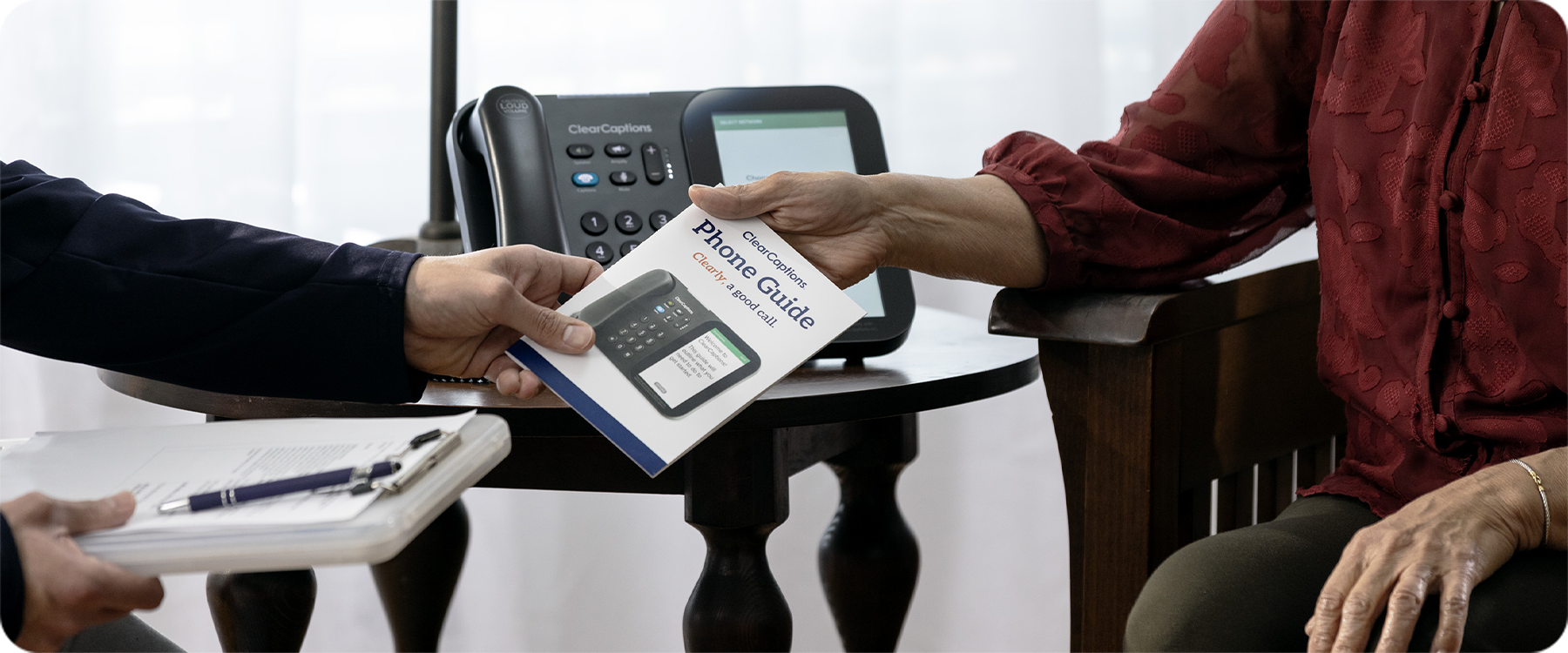
- ClearCaptions offers free in-home setup, where a trained specialist will come to your home, set up the phone, walk your loved one through how to use it, and make sure they feel confident before leaving.
- If you prefer to set up the phone yourself, the process is straightforward and can typically be completed in under an hour.
- ClearCaptions Phone setup instructions are slightly different depending on whether your loved one has a traditional landline (PTSN) or an internet-enabled phone service (VoIP).
- You will need your Wi-Fi network name and password nearby before getting started.
- ClearCaptions Customer Support is available seven days a week if you need help at any point during setup. Call us at 866-868-8695.
Helping a loved one with hearing loss stay connected is one of the most meaningful things you can do as a caregiver. The ClearCaptions Phone displays captions of what callers say on a large, easy-to-read touchscreen, making phone calls easier and more enjoyable for people with hearing loss.
Before we walk you through how to set up the ClearCaptions Phone, there is something worth knowing: you do not have to do this alone. ClearCaptions offers free in-home setup with every phone. A trained ClearCaptions specialist will come to the home, handle the entire setup, walk your loved one through how to use the phone, and stay until they feel fully comfortable. There is no charge for this service.
If you or your loved one would prefer to handle setting up the ClearCaptions Phone yourselves, this guide is for you. The process is simple and typically takes less than an hour.
What You’ll Need Before Setting Up the ClearCaptions Phone
Before you get started setting up the ClearCaptions Phone, take a few minutes to gather what you will need. Having everything ready ahead of time makes the process much smoother.
- A power outlet near where the phone will be placed
- Your Wi-Fi network name and password (if connecting wirelessly)
- An Ethernet cable (optional, but useful if you prefer a wired connection)
- A phone jack in the wall (for traditional landline connections only)
- Your ClearCaptions username and password (the username is the email address used when signing up; a temporary password is provided by ClearCaptions)
One more thing to note before you start: the ClearCaptions Phone setup steps are slightly different depending on the type of phone service your loved one has. A traditional landline (also called PSTN) connects to a wall phone jack. An internet phone service (also called VoIP) works through your internet connection and does not require a wall phone jack. If you are not sure which type your loved one has, check with their phone service provider.
How to Set Up the ClearCaptions Phone: Step-by-Step Instructions
Step 1: Unboxing and What’s in the Box
Open the ClearCaptions packaging and confirm you have the following items:
- A “Start Here” envelope with a Quick Start Guide, Easy Reference Pamphlet, and Warranty Information
- The ClearCaptions Phone
- A phone handset and cord
- A phone stand (can be positioned at two different angles)
- An accessories box
Step 2: Connecting Your Phone Line or Internet
Place the ClearCaptions Phone near a power outlet and, depending on your setup type, near a phone jack or your internet router.
For traditional landline (PSTN) customers:
- Feed the black power cord through the phone stand and plug it into the port labeled Power on the back of the phone. Plug the other end into a wall outlet.
- Plug the white phone cord into the port labeled Phone on the back of the phone. Insert the other end into a wall phone jack or into a telephone port on your modem or router.
For internet phone service (VoIP) customers:
- Feed the black power cord through the phone stand and plug it into the port labeled Power on the back of the phone. Plug the other end into a wall outlet.
- If you have an Ethernet cable, you can plug it into the Ethernet port on the back of the phone and connect the other end to your router for a wired connection.
For both setup types: Watch out for loose cords and keep them out of walkways to avoid tripping hazards.
Once the phone is powered on, it will move to the start-up screen and launch the Setup Wizard automatically.
Step 3: Powering On the Device
Once powered on, the phone will display the Setup Wizard. If the phone is not connected to the internet, you will see a red indicator next to the connectivity step.
To connect via Wi-Fi:
- Tap the Wi-Fi button on the “Select Connection Type” screen.
- Select your Wi-Fi network name from the list.
- Enter your Wi-Fi password when prompted.
- A green checkmark will appear when the connection is successful.
- Tap Next to continue.
To connect via Ethernet:
Tap the Ethernet button instead, and the phone will connect automatically if the cable is already plugged in.
The phone will then check for a software update. If a new version is available, tap Yes to update. The phone will restart on its own and continue the setup process.
Step 4: Creating or Logging into Your ClearCaptions Account
Once the phone is connected and updated, you will be prompted to log in to your ClearCaptions account.
- Enter your ClearCaptions username (this is the email address used when signing up) and your password (provided by ClearCaptions – call 866-868-8695 for assistance).
- Tap the blue Login button.
You will then be guided through a series of screens to complete registration:
- Confirm your date of birth
- Enter the last 4 digits of your Social Security Number
- Review and accept the FCC Self-Certification, confirming that the person using the phone has hearing loss
- Review and accept the ClearCaptions Terms and Conditions
- Review and accept or decline the Customer Proprietary Network Information Terms
For VoIP customers only: You will also be asked to confirm your 911 address in the case of an emergency. This step is important. Press Yes to confirm the address shown or No if you need to update it. You will be given a new ClearCaptions Phone number to share with your loved one’s contacts. They can always find this number by tapping Contacts on the home screen.
When registration is complete, a blue checkmark will appear next to the Registration step.
Step 5: Adjusting Display and Audio Settings
Once registration is done, take a few minutes to customize the phone for your loved one’s comfort.
Caption settings: Go to Settings, tap Phone, then Caption Settings, then Captions Display. Here you can adjust caption size and color. The Invert Color option lets you switch between black text on a white background or white text on a black background.
Volume settings: Use the volume rocker bar on the side of the phone to adjust the ringer volume. During a call, the same rocker adjusts handset or speakerphone volume. If the light bar turns red, the phone has entered Amplify mode, which boosts the volume further. An Amplify Reset setting (found in Settings under Sounds) automatically brings the volume back to a safe level after each call. This is on by default.
Flasher settings: The phone has a light on top that flashes to signal incoming calls, new voicemail messages, or missed calls. To adjust these, go to Settings, tap Flasher, and toggle each option on or off.
Screen display: Go to Settings, tap Display, and adjust the Sleep Timeout to control how long the screen stays active before going dark. Options range from 1 to 20 minutes.
Step 6: Making a Test Call
Once settings are adjusted, make a test call to confirm everything is working properly.
- Tap Favorites on the home screen.
- Tap the Customer Support button in the top-left corner.
- Lift the handset.
A ClearCaptions support team member will help confirm that your volume and captioning settings are working correctly. You can also find the ClearCaptions support number printed on the inside of the handset.
Troubleshooting Common Setup Issues
The phone will not connect to Wi-Fi. Double-check that you have entered the correct Wi-Fi password. Passwords are case-sensitive. If you are unsure, you can find your Wi-Fi password on the back of your router or by contacting your internet service provider.
The phone is not registering. Confirm that you are entering the correct username (the email used when signing up) and the password provided by your ClearCaptions representative. If you have forgotten your credentials, contact ClearCaptions Support at 866-868-8695.
Captions are not appearing. Check that the phone is connected to the internet. Captions require an active internet connection. You can also try restarting the phone by unplugging it and plugging it back in.
The phone shows a red indicator during setup. This means a step in the Setup Wizard has not been completed. Tap on the step showing the red indicator and follow the on-screen instructions to resolve it.
How to Customize the ClearCaptions Phone
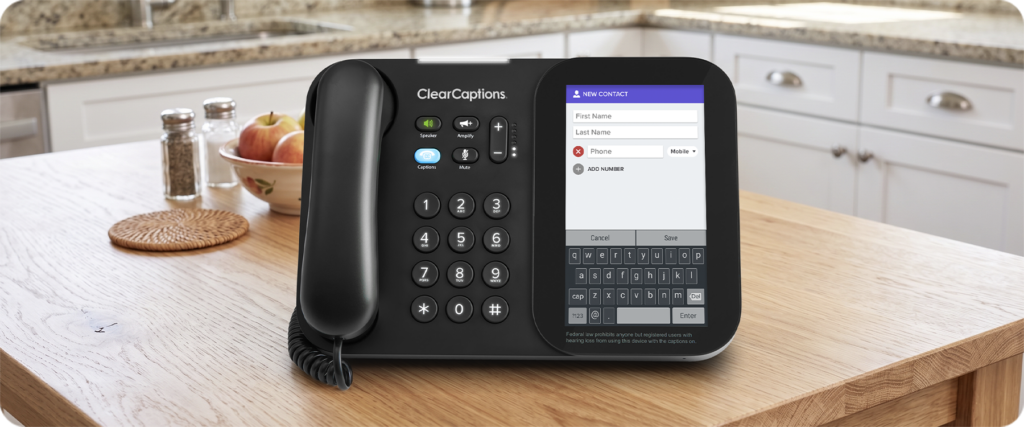
After you’ve finished setting up the ClearCaptions Phone, there are a few more ways to personalize the phone for your loved one.
Adding contacts: Tap Contacts on the home screen, then Add Contact. Enter the first and last name along with the phone number. Contacts are stored alphabetically by last name.
Setting up voicemail:
The ClearCaptions Phone features captioned voicemail, which means your loved one’s voicemail messages will be completely captioned.
For traditional landline customers, go to Settings, tap Phone, then Voicemail. You can record a personalized greeting or use the default. Set how many rings occur before voicemail picks up (between 2 and 12). If your loved one already has an existing voicemail service through their phone provider, contact that provider to deactivate it to avoid conflicts.
For VoIP customers, voicemail is already set up as part of the ClearCaptions Phone number. A flashing light and a red dot on the voicemail icon will appear when there are new messages. Tap the Voicemail icon and follow the prompts to listen to and read captioned messages.
Help videos: Tap Help on the home screen to access built-in tutorial videos covering all of the phone’s features. These can be paused and replayed at any time.
Tips for Helping a Senior Get Comfortable with Their ClearCaptions Phone
Even after a smooth ClearCaptions Phone setup, your loved one may need a little time to adjust to using their new phone. These tips can help.
Practice together. Sit with your loved one and make a few calls together. Walk through how to dial, adjust the volume, and read the captions. Familiarity builds confidence.
Keep the Easy Reference Guide handy. The phone comes with a printed guide. Leave it near the phone as a quick reminder for common tasks.
Start with familiar contacts. Encourage your loved one to call someone they talk to often. A comfortable, familiar conversation is a great first experience with captioned calls.
Remind them support is always available. The ClearCaptions Support Team is available Monday through Friday from 8:00 a.m. to 10:00 p.m. ET and on weekends from 9:00 a.m. to 7:00 p.m. ET. They can call 866-868-8695 any time they need help.
Use the Help videos. The built-in help videos on the phone are a great self-service resource. Encourage your loved one to explore them at their own pace.
Ready to get your loved one set up? If you would like a ClearCaptions specialist to handle everything, learn more about our free in-home setup and schedule an appointment today.
Frequently Asked Questions
Can I set up the ClearCaptions phone remotely for a family member?
ClearCaptions offers free over-the-phone setup with support from a trained specialist. This is a great option if you live far from your loved one. You can also walk them through the steps in this guide over the phone. For the smoothest experience, ask your loved one to have their Wi-Fi password ready before starting.
How long does ClearCaptions setup take?
Setting up the ClearCaptions Phone typically takes under an hour but be sure to take your time. An in-home setup appointment might take slightly longer, as the specialist providing ClearCaptions Phone setup also provides training and makes sure your loved one is comfortable using the phone.
What internet speed is needed for ClearCaptions?
ClearCaptions requires a stable internet connection. The phone works with most standard home internet services. If you have questions about whether your loved one’s connection is compatible, contact ClearCaptions Support at 866-868-8695.
What if my loved one already has voicemail through their phone provider?
If your loved one is using a traditional landline (PSTN), you will want to contact their phone provider to deactivate their existing voicemail service before or after setup. This prevents conflicts with the ClearCaptions Phone’s built-in voicemail. For VoIP customers, voicemail is already included with their new ClearCaptions Phone number.
What if my loved one is not comfortable using the phone on their own yet?
That is completely normal. ClearCaptions specialists are trained to provide guided training during the in-home setup appointment. After setup, help videos are available directly on the phone, and the ClearCaptions Support Team is available seven days a week at 866-868-8695.
Is the ClearCaptions Phone available at no cost?
Yes. Thanks to a federally managed program, the ClearCaptions Phone and call captioning service are available at NO COST to eligible individuals. To qualify, your loved one must be a U.S. resident who has hearing loss that requires the use of captioned calls and has an internet connection. Learn more about eligibility here.