Essential Smartphone Accessibility Features for Seniors: A Caregiver’s Guide


Key Takeaways
- Understanding smartphone accessibility features for seniors makes using smartphones easier.
- Safety features, such as emergency SOS and location sharing, give caregivers peace of mind.
- Most phone accessibility for seniors settings won’t drain batteries or slow devices.
Vision and Display: Making the Screen Easy to See
As vision changes, many people find small text unreadable, icons become blurry, and bright screens lead to headaches. Thankfully, senior phone accessibility settings help solve these issues.
Font & Display Size
One of the easiest ways to improve accessibility on a smartphone is to adjust the font and display size. Both iPhone and Android devices can make text significantly larger without changing how apps function.
Start by showing them how text looks at different sizes and decide what feels comfortable. Even if it seems large to you, it might be the perfect size for them.
Screen Magnification (Zoom Feature)
The Zoom feature is another great way to make smartphones more accessible. By zooming in on specific content, seniors can make it bigger than even the biggest font size change allows.
Practice this feature with them several times, as the methods to activate the screen magnification might feel awkward initially. Once they get the hang of it, they can zoom into photos, read medicine labels captured with their camera, or enlarge small buttons in apps.
Contrast and Color Adjustments
High-contrast modes make screen elements stand out, which is especially helpful for those with visual challenges.
Experiment with these settings together. Some may prefer higher contrast, while others might find a dark mode uncomfortable.
Hearing and Audio: Ensuring Clear Communication

Hearing loss affects millions of older adults. Smartphone settings for hearing loss and other technology features ensure they don’t miss important calls, messages, or alerts.
Volume and Sound Settings
Start with the basics, as they may not realize they can adjust ringer volume, media volume, and call volume separately.
Show how to use the physical volume buttons during different activities. Demonstrate that pressing the buttons while on a call will adjust the call volume, but that pressing them from the home screen typically adjusts ringer volume.
Visual and Vibration Alerts
When seniors can’t hear their phone ring, they miss important calls. Visual and vibration alerts provide alternatives to sound.
Screen flash alerts briefly flash the entire screen when notifications arrive, grabbing attention even when the phone is across the room. The feeling of a vibration alert can also be helpful.
Hearing Aid Compatibility (HAC) & Bluetooth
Modern hearing aids often connect directly to smartphones via Bluetooth. This lets phone calls stream directly into hearing aids, providing crystal-clear audio without feedback or interference.
Even without Bluetooth hearing aids, phones offer hearing aid compatibility modes that reduce interference. Look for HAC settings in Accessibility menus.
Captions for Phone Calls
Smartphone settings for hearing loss increasingly include call captioning, but built-in options remain limited. Many smartphones don’t provide comprehensive captioning for phone conversations.
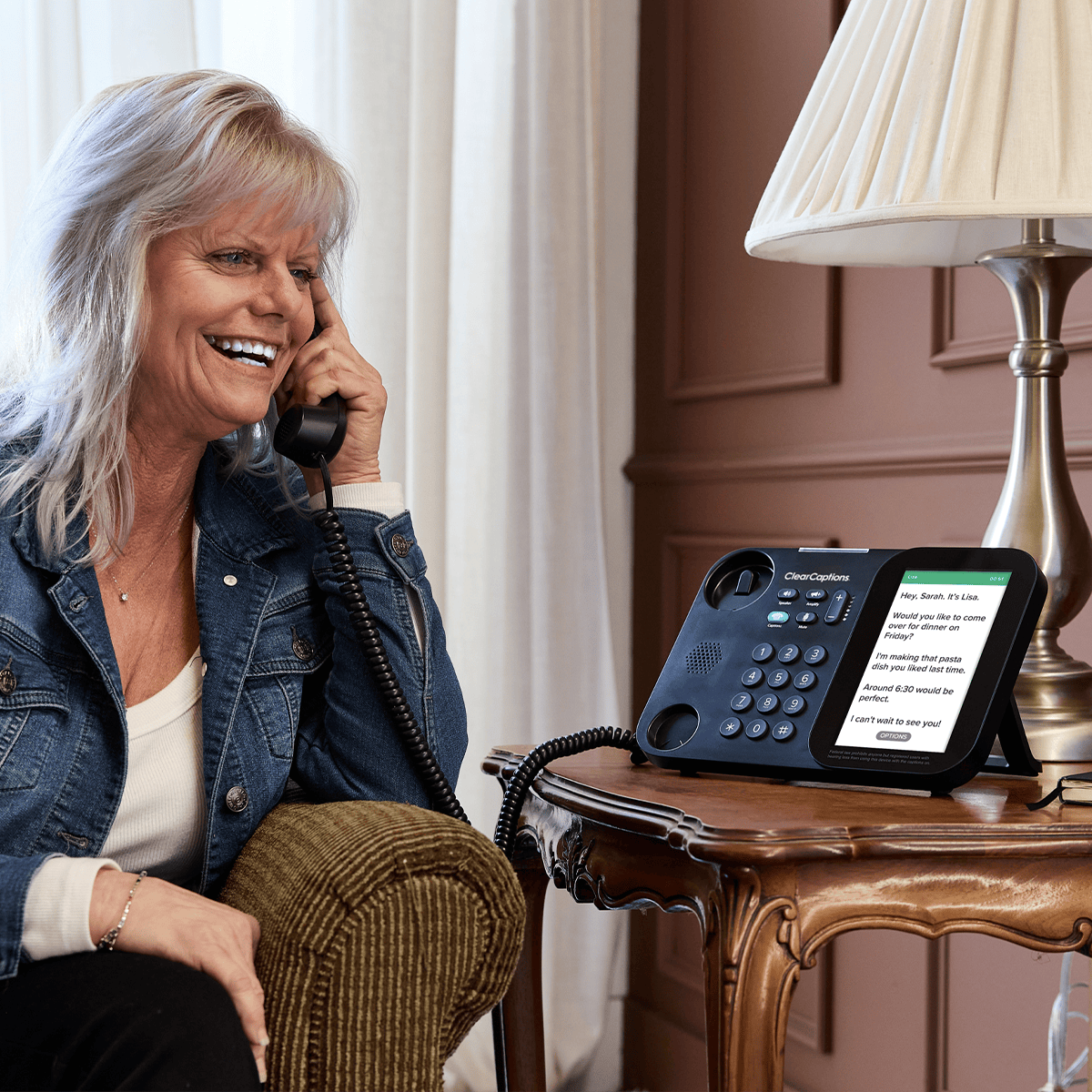
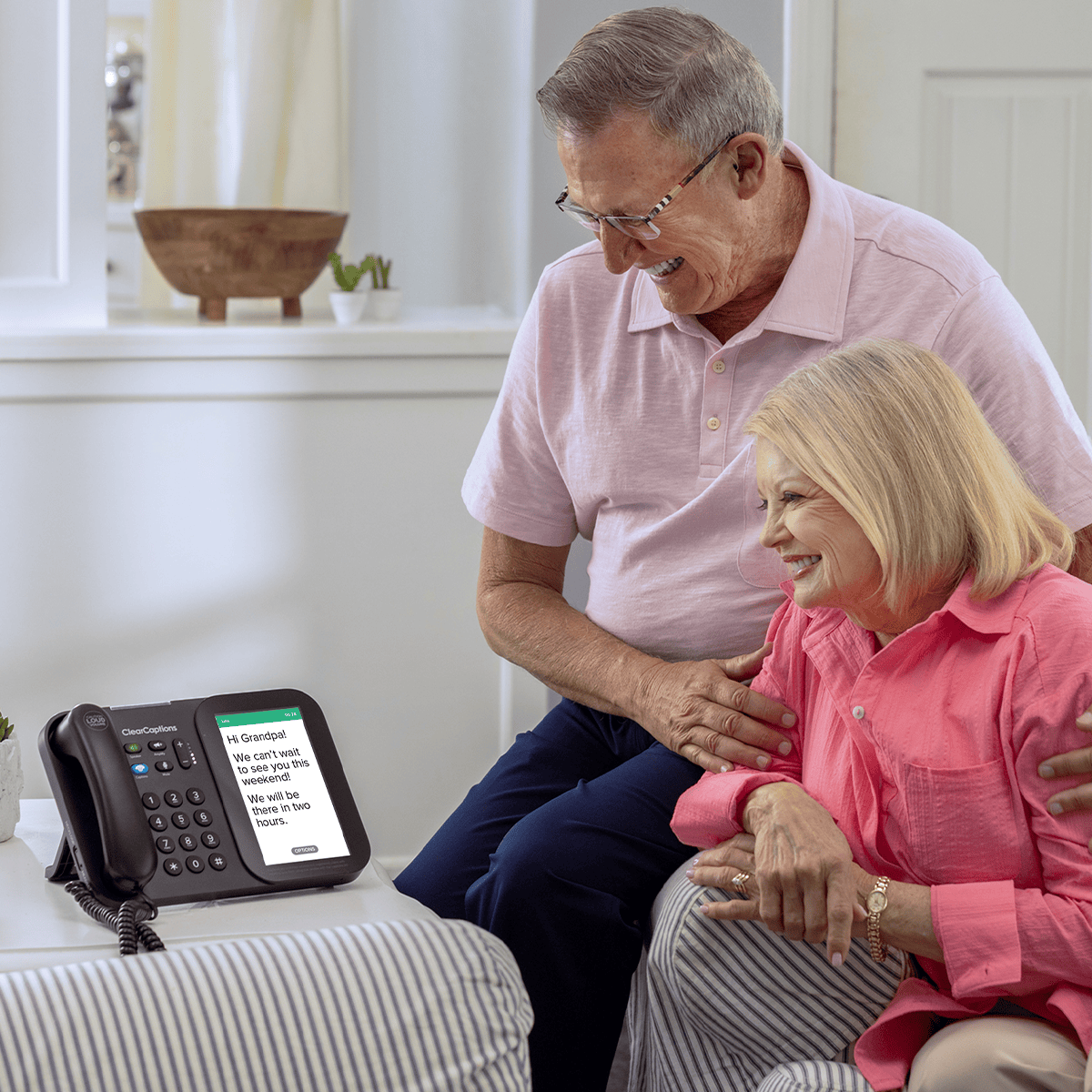
For seniors who require reliable call captions, dedicated caption phone services like ClearCaptions offer a superior solution. ClearCaptions phones display every word spoken during calls on a large, easy-to-read screen, capturing every detail of the call.
The service is available at no cost to qualified individuals with hearing loss through a federally managed program. Professional setup, training, and lifetime support are included. For seniors who primarily need phone access with captions, a dedicated caption phone often works better than smartphone accessibility features.
Motor Skills and Dexterity: Easier Interaction
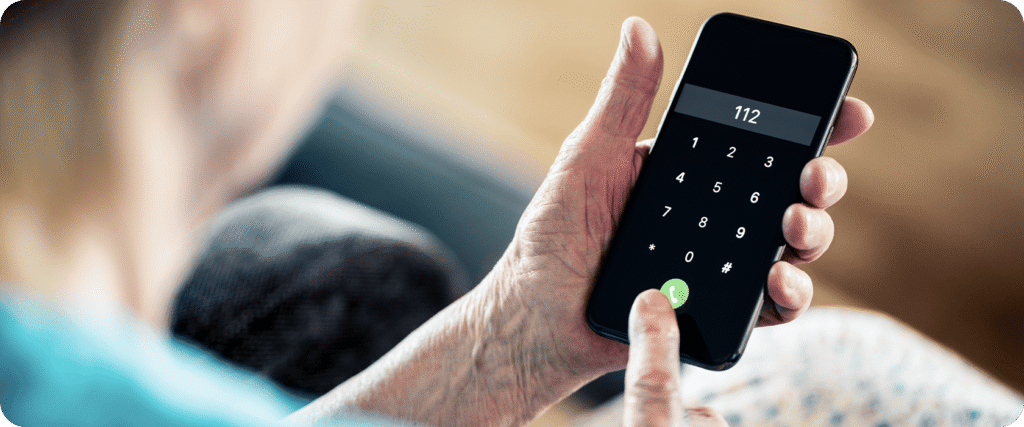
Arthritis, tremors, and reduced fine motor control make touchscreens challenging. Accessibility features for elderly users address these physical limitations.
Voice Control and Dictation
Voice control eliminates the need for precise tapping and typing. Instead of navigating menus, the user can simply speak their commands.
iPhone’s Siri or Android’s Google Assistant can help call contacts, send messages, set reminders, or open apps. By using common voice commands, the user can reduce their reliance on touchscreen navigation.
If you think your loved one could benefit from voice commands, practice them together. Start with simple tasks, such as “Call [contact name]” or “What’s the weather today?” As they become more comfortable, introduce more complex commands.
Touch Accommodations
Touchscreen adjustments help seniors whose fingers don’t always register taps accurately or who accidentally trigger unwanted actions. You can adjust things like Hold Duration, which trains your phone to ignore brief, unintended touches, or Ignore Repeat, a tool that ignores multiple taps that occur quickly.
Simplified Navigation
Simple launchers and modes reduce visual clutter and make essential functions more accessible. Many phones include “easy mode” or “simple mode” settings.
This can do everything from enlarge icons to eliminate screen transitions that may confuse or disorient seniors.
Peace of Mind: Safety and Emergency Features
Safety features protect seniors and provide caregivers with peace of mind and reassurance. Phone accessibility for seniors includes critical emergency functions.
- Emergency SOS quickly contacts emergency services or designated contacts
- Medical ID information can display health details, such as allergies, medical conditions, medications, or emergency contacts, without requiring the device to be unlocked
- Location sharing lets caregivers know where their family members are
- Fall detection can automatically contact emergency services if it detects a hard fall and the user doesn’t respond within a certain time
Tips for Caregiver Teaching Seniors New Smartphone Features

Introducing smartphone accessibility features for seniors requires patience and a thoughtful approach. Technology learning curves are steeper for seniors who didn’t grow up with these devices.
Here are some tips to make the process of adopting new technologies easier:
- Start simple and build gradually – Begin with one essential feature at a time, avoiding overwhelm, and let them control the pace of learning based on their comfort level.
- Use repetition and hands-on practice – Demonstrate each feature, then watch them practice it themselves multiple times until it becomes familiar.
- Create easy reference materials – Write step-by-step instructions with large, clear text and include screenshots if possible; keep this cheat sheet with their phone.
- Practice emergency features until automatic – Ensure they know how to activate Emergency SOS and access Medical ID, practicing these critical functions repeatedly.
- Be patient and provide ongoing support – Celebrate small wins, schedule regular check-ins to answer questions, and encourage exploration by reassuring them they can’t break the phone.
Enable the smartphone accessibility features for seniors without worrying about slowdowns. The benefits to usability far outweigh any minor performance considerations.
Frequently Asked Questions
How do I change the text to a larger size on a smartphone?
Changing the text depends on the type of phone you have.
iPhone: Go to Settings > Display & Brightness > Text Size and drag the slider right. For maximum size, enable Settings > Accessibility > Display & Text Size > Larger Text and use that slider instead.
Android: Open Settings > Display > Font Size or Font and Screen Zoom. Adjust both sliders to increase text size and make screen elements bigger. These changes apply throughout most of the phone.
Is there a simple way for a senior with tremors or arthritis to use the smartphone without having to tap accurately?
Yes. Voice control is the best solution, and every smartphone offers this option. You can enable Siri on an iPhone or Google Assistant on Android. Then, instead of tapping through menus, the user can just speak commands like “Call Mom” or “Send a text to John.”
Do accessibility features drain smartphone batteries faster?
Most senior phone accessibility settings won’t drain batteries faster. Features like larger text, bold fonts, and color adjustments have no impact on battery consumption. Other features, such as Dark Mode, could actually help save battery life.
Will the smartphone become slower if we enable too many accessibility features?
No. Accessibility features for elderly users are designed to work efficiently without slowing phones down. Text size changes, color adjustments, and sound modifications don’t impact performance. If a phone feels slow, the issue likely stems from old software, insufficient storage, or too many apps running in the background. Update to the latest operating system, delete unused apps, and restart the phone regularly to maintain performance.